Uptime Kuma: Self-Hosted Monitoring That Warns You Before Your Users Do
A status page you'll be proud to share
Contents
There are two ways to learn that your website is down. The first is a polite alert on your phone at the first sign of trouble, giving you time to fix it quietly. The second is an angry message from a user, a customer, or your boss, after the outage has already done its damage. Uptime Kuma exists to make sure you get the first kind. It is a self-hosted monitoring tool that watches your services and shouts the moment one stops answering — and it is genuinely pleasant to use.
Why monitor your own services
If you run anything that people depend on — a website, an API, a mail server, a home lab — you need to know when it breaks before the people who depend on it do. Monitoring is the difference between “we noticed a blip and restarted the service” and “we were down for six hours and nobody told us”.
You could pay a third-party monitoring service, and for some situations that is the right call. But self-hosting gives you full control, no per-monitor billing, no data leaving your infrastructure, and the ability to watch internal services that a public monitor could never reach. Uptime Kuma is the tool that makes self-hosting this easy rather than a weekend project.
It also sits at a very specific point on the observability spectrum, and it’s worth placing it there up front. Uptime Kuma answers “is it up?” — the black-box, from-the-outside question. It does not answer “is anyone attacking it?” (that’s a job for a security monitor like the one I covered in Wazuh, a self-hosted SIEM for the home lab), nor “how much RAM is it using and why?” (a full metrics stack, discussed near the end of this post). Knowing where Kuma stops keeps you from either over-loading it or being disappointed by it.
What Uptime Kuma is
Uptime Kuma is an open-source, self-hosted monitoring tool with a clean web interface. You point it at the things you care about, choose how often to check them, and it records uptime, response times and incidents. When something goes down, it fires notifications through whatever channels you configure. It also produces public status pages so you can share service health without giving anyone access to the dashboard.
It is deliberately lightweight. A small virtual machine or even a Raspberry Pi can run it comfortably, watching dozens of endpoints without breaking a sweat.
Installing with docker-compose
The cleanest way to run Uptime Kuma is in a container. Create a directory and a docker-compose.yml:
| |
Then bring it up:
| |
The ./data volume holds the SQLite database and all your configuration, so it survives container upgrades — to update, you just docker compose pull and docker compose up -d again. Browse to http://your-server:3001, and on first visit you will be asked to create an admin account. That is the whole installation.
In production you would put Uptime Kuma behind a reverse proxy such as Caddy or Nginx for TLS, rather than exposing port 3001 directly. A minimal Caddy entry is two lines:
| |
Adding monitors
A “monitor” is a single thing being watched, and Uptime Kuma speaks several protocols.
- HTTP(s): the workhorse. Enter a URL, and Kuma checks the response code on an interval (60 seconds by default). You can require a specific status, match a keyword in the body — handy for catching a page that returns 200 but shows an error — and validate the TLS certificate’s expiry.
- TCP Port: checks that a port accepts connections, ideal for databases, SSH or anything without an HTTP layer.
- Ping: an ICMP ping to confirm a host is reachable at all.
- DNS: queries a record and optionally checks the answer, so you catch DNS problems and hijacks.
There are more — gRPC, Docker container health, push monitors for cron jobs that report in — but those four cover the bulk of real-world needs. For each monitor you set the check interval, the number of retries before it is declared down, and which notifications to fire.
The push monitor deserves a special mention because it inverts the usual model. Instead of Kuma reaching out to check something, the thing checks in with Kuma. Kuma gives you a unique URL, and your job — a nightly backup, a cron task, a data-sync script — hits that URL every time it finishes successfully. If the expected ping doesn’t arrive within the window you set, Kuma raises an alarm. This is the only reliable way to catch a scheduled job that silently stopped running, because a job that never runs also never errors. A one-line addition to the end of a backup script does it:
| |
Because the curl sits after set -e and the real work, it only fires if the backup actually succeeded — a failed backup exits early, no ping is sent, and Kuma notices the silence.
Watch every service you actually run
The obvious targets are your public website and API, but the real payoff in a home lab is watching the services you’d otherwise only discover were broken when you went to use them. Every self-hosted app I run gets a monitor: the Immich photo server so I know its web endpoint answers before I try to back up a phone, the recipe manager, the finance app, the lot. A dead internal service that nobody monitors can sit broken for weeks; a monitor turns that into a same-day fix.
Notifications: getting told
A monitor that detects an outage in silence is useless. Uptime Kuma supports a long list of notification channels, and you configure them under Settings then attach them to monitors.
- Email (SMTP): point it at your mail provider’s SMTP server with credentials, and outages land in your inbox.
- Telegram: create a bot via BotFather, grab the token and your chat ID, and get instant messages on your phone.
- Webhooks: post a JSON payload to any URL, which lets you wire Kuma into Slack, Discord, Microsoft Teams, or your own automation.
- ntfy: a lovely lightweight option — run or use an ntfy server, subscribe on your phone, and receive push notifications without building a bot.
Configure at least two channels so a single failing provider does not leave you blind. Use the “Test” button when setting each one up; there is nothing worse than discovering during a real outage that your alerting was misconfigured.
Public status pages
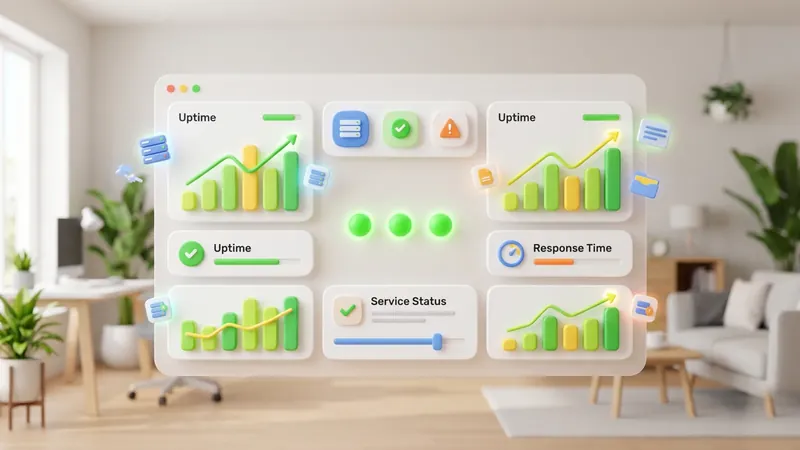
Beyond private monitoring, Uptime Kuma builds public status pages. You choose which monitors appear, group them sensibly (“Web”, “API”, “Email”), add your logo and a custom domain, and share the link with users. During an incident, a status page deflects a flood of “is it just me?” questions and signals that you are on top of things. It shows current state, historical uptime percentages and an incident history, and you can post manual incident updates to keep people informed while you work.
Maintenance windows
Planned work should not page you, nor should it dent your published uptime figures or trigger user-facing alerts. Uptime Kuma’s maintenance feature lets you schedule a window — one-off or recurring — during which selected monitors are paused and the status page shows a friendly “scheduled maintenance” banner instead of a scary red outage. Set the window before you start that database migration, and everyone, including future-you reviewing the uptime graph, will thank you.
Don’t run the monitor on the box it watches
Here is the mistake that quietly defeats the whole exercise: running Uptime Kuma on the very server it is supposed to monitor. If that machine falls over, so does your monitoring, and your alerting goes down at the exact moment you need it. The monitor must live somewhere independent of what it watches — a different host, a different provider, ideally a different physical location.
A common and cheap pattern is to run Kuma on a small VM with a different hosting company from your main infrastructure. For belt-and-braces coverage you can even run a second tiny instance elsewhere that watches the first, so you are alerted if your monitor itself disappears. Monitoring that shares fate with the thing it monitors is not really monitoring at all.
Where Uptime Kuma stops and Prometheus begins
Uptime Kuma is superb at black-box monitoring: is this endpoint up, how fast does it respond, is the certificate about to expire. What it does not do is deep metrics. It will not graph CPU per core, memory pressure, disk I/O, queue depths, request percentiles, or arbitrary application counters, and it has no rich query language or long-term metric storage for capacity planning.
That is where a full Prometheus and Grafana stack comes in, scraping detailed metrics, storing time series, and letting you build dashboards and sophisticated alert rules. The honest answer for most people is that you want both: Uptime Kuma for instant, human-friendly “is it up?” alerting and a shareable status page, and Prometheus/Grafana when you need to understand why and how badly. Many teams reach for Kuma first because it delivers value in ten minutes, then add the heavier stack as their needs grow.
Troubleshooting the usual snags
A few problems come up often enough to name.
False alarms every few minutes. Almost always the check interval is too aggressive or the retry count too low. A monitor set to 20-second checks with zero retries will page you over a single dropped packet. Set retries to 2–3 so a genuine outage must persist across several checks before it fires, and use a 60-second interval unless you have a real reason to go faster.
Notifications silently never arrive. The commonest cause is a notification channel that was configured but never attached to the monitor — Kuma keeps those separate on purpose. The second commonest is SMTP or bot credentials that were wrong from the start. Always use the Test button when you set a channel up; discovering during a real outage that your alerting was broken is the worst possible time.
TLS-expiry alerts don’t fire. Certificate-expiry checking only runs on HTTPS monitors, and only if the endpoint actually presents the certificate you think it does. If you’re monitoring a URL that a proxy redirects, Kuma may be inspecting the wrong hop. Monitor the real HTTPS endpoint directly.
The dashboard is slow after months of use. Kuma stores history in SQLite, and very frequent checks across many monitors build a large table. Trim the data-retention setting under Settings so it prunes old heartbeats, and the interface comes back to life.
Container won’t keep its data across updates. If your monitors vanish after docker compose pull, the ./data volume wasn’t mounted correctly. That directory is the entire database and config — verify the bind mount before you trust the setup.
Conclusion
Uptime Kuma turns “find out you’re down from an angry user” into “get a quiet ping and fix it first”. It installs in minutes with docker-compose, watches HTTP, TCP, ping and DNS, alerts through email, Telegram, webhooks and ntfy, and produces status pages you will actually want to share. Keep it off the box it monitors, configure more than one notification channel, schedule your maintenance windows, and reach for Prometheus and Grafana when you need depth. Set it up this afternoon, and let your services tell you when they are unwell — before anyone else has to.
Related Content